How to share a pattern
How to put a pattern made in Paper on Atelier and request review.
Before you start
Our free pattern event is on now: 1 approved free pattern earns 1 month of Pro, and 5 earn 3 months in total.
- Patterns must be made in Patterners Paper. One Paper becomes one pattern.
- Free plan members can share free patterns too. No identity verification is needed.
- Only your own original work can be shared. Copies or translations of other patterns can't.
Step 1 · Finish your pattern in Paper
Create a Paper in Patterners and add charts, instructions, photos, and videos. It needs at least some text, a chart, or a video before you can share it.
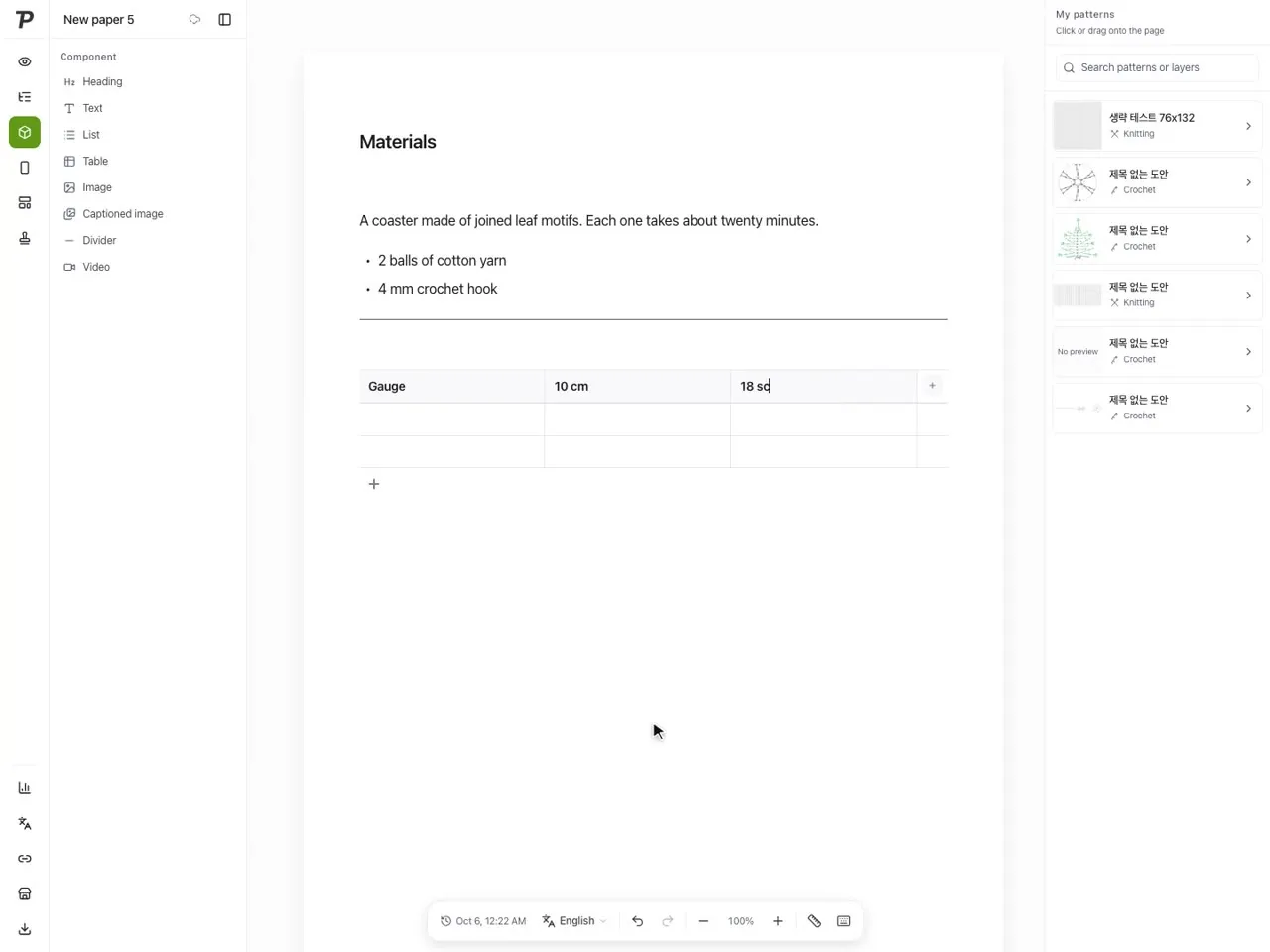
For colorwork charts, tap “Publish to Atelier” in the share dialog. The chart is moved into a Paper and the listing screen opens.
Step 2 · Open the listing screen
Start from whichever is easiest:
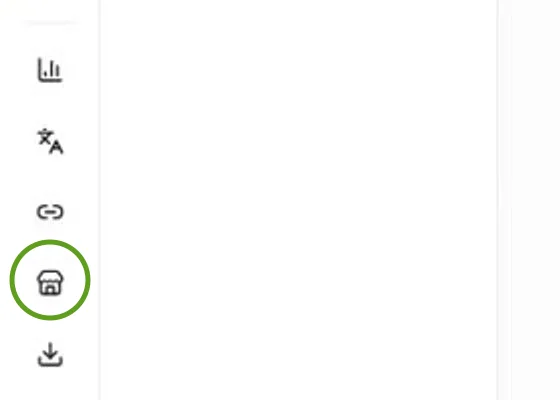
- Paper editor: the shop icon (Share to Atelier) in the left rail
- Workspace home: “Publish to Atelier” on a Paper card
- Atelier store: Me → “Publish your pattern”, then pick a Paper
Step 3 · First time? Create your designer profile
The first time, choose the designer name and page address buyers will see. Agree to the seller terms and tap the button to create your profile and continue.
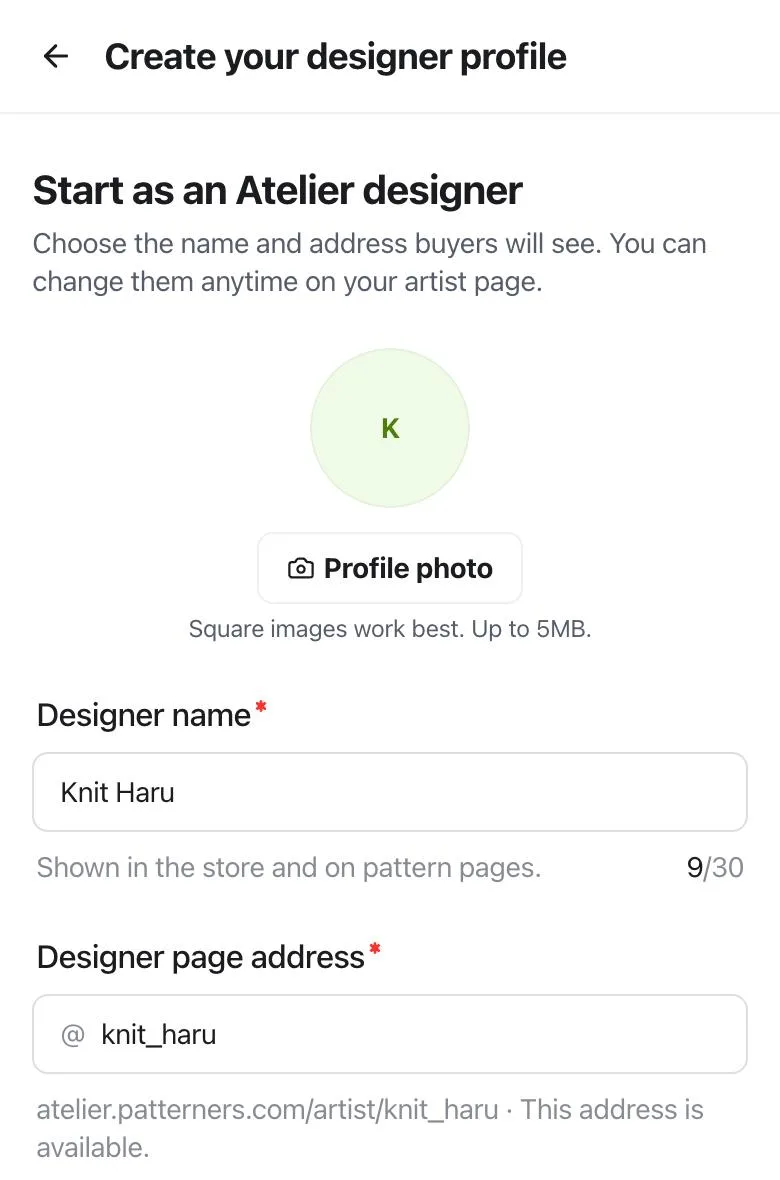
- Designer name: shown in the store and on your pattern pages.
- Designer page address: 3–30 characters of lowercase letters, numbers, underscores (_), and periods (.).
- You can add a photo, bio, and social links later.
Step 4 · Fill in the details
Fill in the listing screen. You can't request review while a required field is empty.
- 1
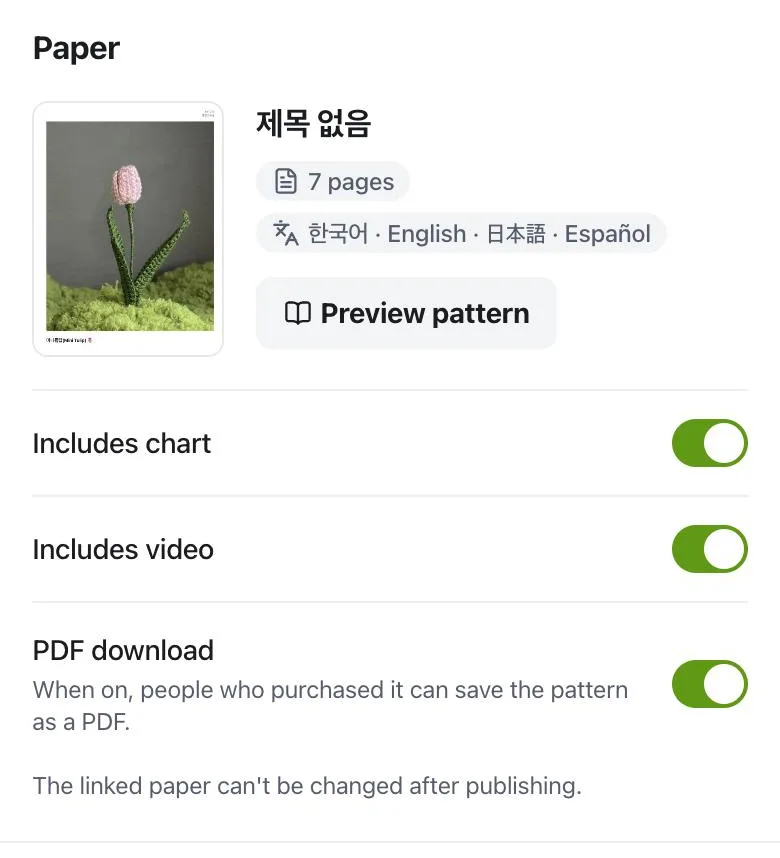
Paper
Check the Paper you're sharing, and choose whether to include charts and videos and whether people can save it as a PDF (posts: as images).
- 2
Images
The thumbnail (required) works best as a square photo that clearly shows the finished piece. Keep it under 5MB, or use the Paper preview. You can add up to 9 more photos.
- 3
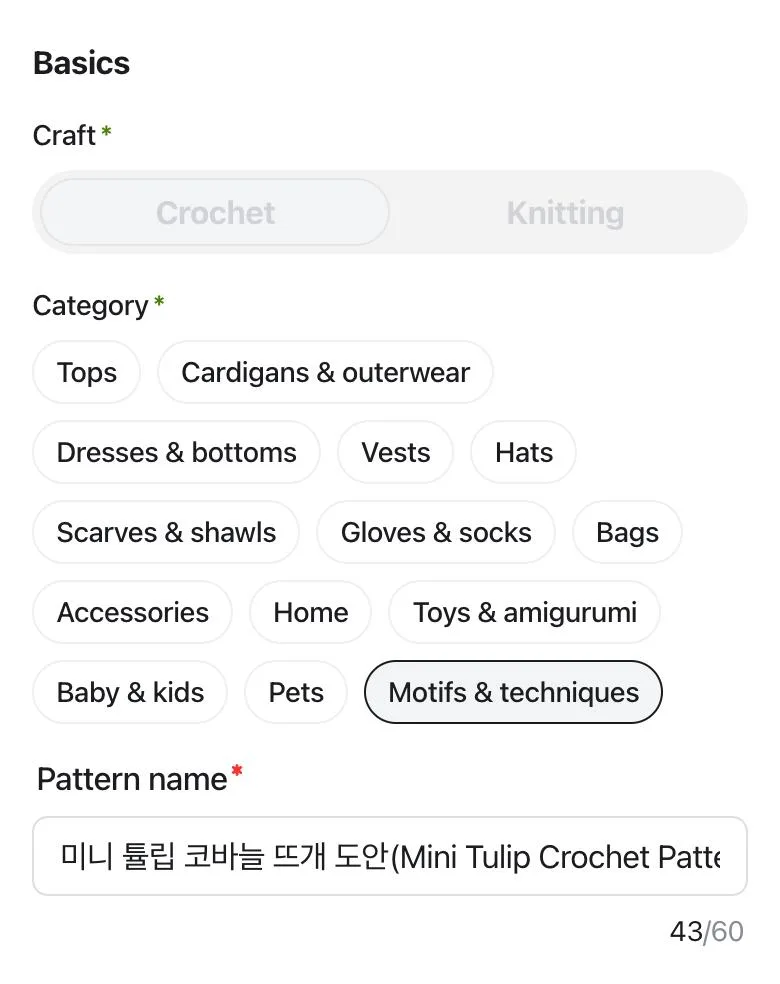
Basic info
Craft (crochet or knitting), category, and pattern name (up to 60 characters) are required. A one-line intro, description, and up to 10 tags make it easier to find.
- 4
Pattern details
Add difficulty, sizes, yarn, needle size, gauge, notions, and estimated time as far as you know them. All optional, but the more you add, the easier it is to choose.
- 5
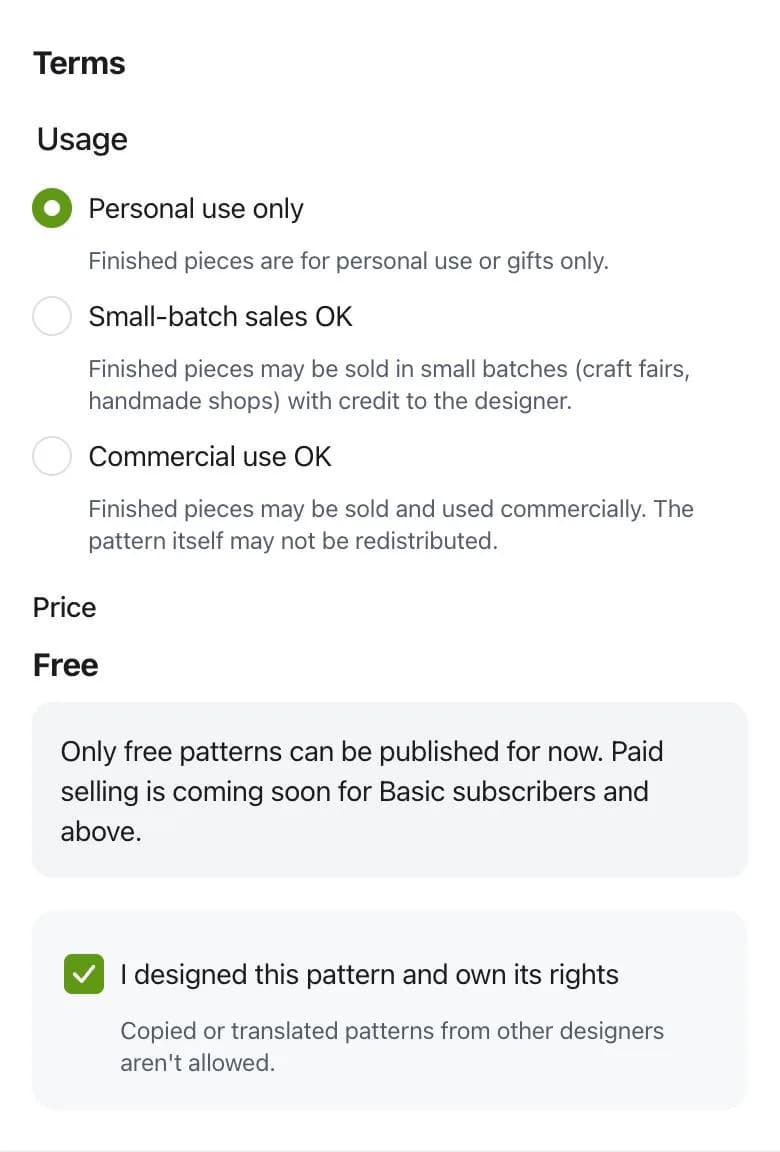
Usage terms
Choose the usage scope and tick “I designed this pattern and own its rights” (required). Only free is available for price right now.
Once craft and category are set, a draft saves automatically every 30 seconds. You can also tap “Save draft”.
Step 5 · Check the preview
Tap “Preview” in the bottom bar to see how it will look in the store, on the “Store page” and pattern tabs.
Step 6 · Request review
When everything is filled in, tap “Submit for review” and confirm.
- You can't edit the listing until the result is in.
- We usually let you know within 1–2 days by notification and email.
- If it passes, it goes live right away. If it's rejected, check the reason, fix it, and request again.
Patterns that are incomplete or missing information may not pass. Check Review criteria before you request.
After you share
Track each pattern's status (draft · in review · live · not approved · hidden) in Manage store. To make changes, see Editing a shared pattern.
FAQ
- Can I sell patterns?
- Only free sharing is available for now. Paid selling is planned for Basic subscribers and up.
- Do I need identity verification?
- Not for free patterns. Phone verification will be needed once paid selling opens.
- Can one Paper become several patterns?
- No. One Paper is one pattern. Picking a Paper you already shared opens that pattern's listing screen.
- Can I delete a shared Paper?
- Not while it's on Atelier; hide it from the store first. Once someone has it, it can't be deleted, so they keep access.